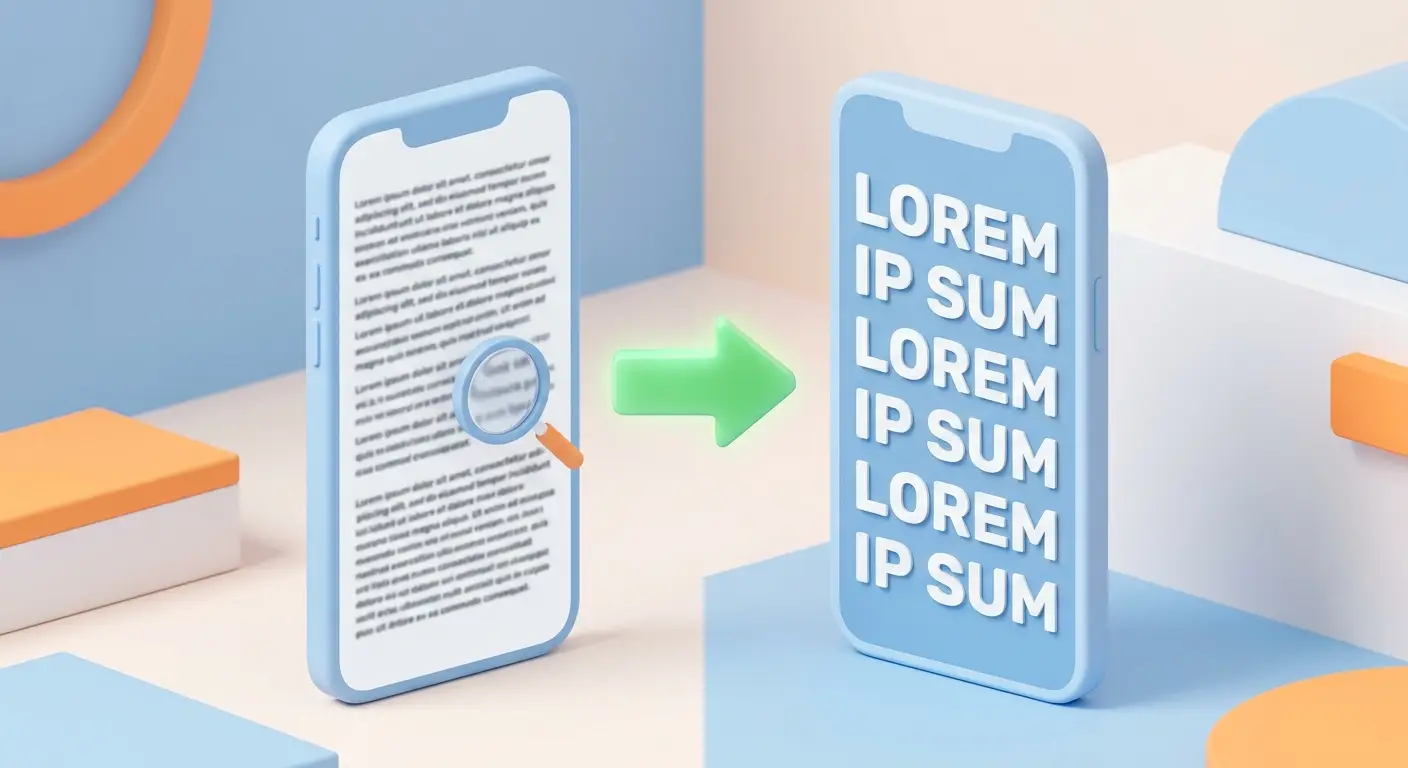
You hold your phone at arm's length, squint, tilt it toward the light — and still can't make out what it says. If this sounds like your morning routine, you are in very good company.
Phone manufacturers have been quietly shrinking the default text size for years. Why? Because it makes their devices look sleek and modern in advertisements. But for the rest of us — especially anyone over 60 — that tiny text is genuinely exhausting. It causes eye strain, headaches, and the creeping feeling that technology just wasn't made for us.
Here is the truth: it absolutely was. Every iPhone and Android phone comes with powerful built-in settings to make text as large and bold as you want. The problem is that nobody ever points them out. That's exactly what this guide is for.
In the next few minutes, you will learn four simple steps that will transform how your phone looks — making every word crisper, every icon bigger, and every message effortless to read. And not a single one of these steps costs anything.
4 Easy Steps to Make Your Phone Text Larger
-
Find "Display & Brightness" in Your Settings
Everything starts in your phone's Settings — the grey gear icon on iPhone, or the gear icon you find by swiping down from the top of an Android screen. Open it now. Once you're inside, here is exactly what to look for:
📱 iPhone- Scroll down and tap Display & Brightness. This is your control center for everything visual on your iPhone.
- Tap Display or Display Size & Text. The exact name may vary slightly by phone brand, but it will always include the word "Display."
-
Move the "Text Size" Slider All the Way Up
Inside Display settings, look for an option called Text Size or Font Size. Tap it. You will see a horizontal slider bar — a line with a small circle handle you can drag with your finger.
Drag the circle handle as far to the right as it will go. As you slide it, watch your screen — the text on the page will grow in real time so you can see exactly what it will look like. Pick the size that feels comfortable to you. Most people find the largest setting is a genuine relief.
🤖 Android only- On Android, you may also see a separate "Display Size" slider nearby. Increase this one too — it makes icons, buttons, and menus larger, not just text.
-
Turn On "Bold Text" for Extra Crispness
Larger text is a great start. But bold text takes it one step further by making every letter thicker, darker, and easier to distinguish — especially useful in lower light or for people whose vision has softened over the years.
📱 iPhone- Go back to Display & Brightness.
- Find the Bold Text toggle — it looks like a switch. Tap it so it turns green (on).
- Your iPhone may restart briefly. This is completely normal. It will be back in a few seconds, and everything will look noticeably sharper.
- Inside Display Size & Text, look for a toggle called Bold Text or a Font Style option. Tap Bold Text to switch it on.
- On Samsung phones, go to Settings → Display → Font Size and Style and tap the Bold Font toggle.
-
Zoom Your Home Screen Icons So They're Easier to Tap
Even after making text larger, some people find the icons on their home screen — the little pictures for apps like Phone, Messages, and Camera — still feel too small and too close together. Here's how to space them out and make them bigger.
📱 iPhone- Go to Settings → Display & Brightness → Display Zoom.
- You will see two options: Default and Larger Text. Tap Larger Text, then tap Set in the top right corner.
- Your iPhone will restart. When it comes back, the icons will be noticeably larger and easier to tap — especially helpful for those moments when your fingers just don't cooperate.
- Go back to Settings → Display and look for Display Size. Slide the dial toward "Large" or "Larger."
- Alternatively, on the home screen itself, press and hold a blank area, tap Settings or Home Screen Settings, and look for a Grid Size option — choosing a smaller grid (like 4×5 instead of 5×6) means fewer, bigger icons on each screen.
Nothing is permanent here. Every single setting in this guide can be reversed in seconds if you ever change your mind. You are not breaking anything or making any lasting changes — just adjusting how your screen looks. Feel completely free to experiment until it feels just right for you.
Here is a hidden gem that almost nobody knows about: your phone has a built-in magnifying glass — and you can turn it on with just a triple-tap. It works like a real magnifier and can enlarge anything on your screen up to 15 times its normal size.
On iPhone: Go to Settings → Accessibility → Zoom and switch it On. Now, anytime you double-tap the screen with three fingers, a magnifier window appears. Drag it over any text to read it easily. Double-tap with three fingers again to dismiss it.
On Android: Go to Settings → Accessibility → Magnification and turn it on. Then triple-tap anywhere on the screen to zoom in. Triple-tap again to zoom back out.
This is incredibly useful for reading restaurant menus, pill bottles, price tags, or any fine print — without ever needing your reading glasses.
🎉 Your Phone Just Got a Whole Lot Easier to Use
What you've done today is genuinely significant. You didn't just adjust a setting — you changed your daily relationship with your phone. No more squinting. No more holding it at arm's length. No more headaches from trying to make out tiny letters in a text message.
Your phone was designed to make your life easier — and now it finally will. The four steps above take about two minutes in total, cost absolutely nothing, and the difference you'll notice is immediate and real.
And remember: you figured this out yourself. That makes you more capable with technology than you might think. Now, do you know a friend or family member who holds their phone at arm's length and squints? Share this with them — it might be the nicest thing you do for them all week.